New Year’s email signature banners
Browse New Year’s bannersStart the year with a signature that pops. Explore a gallery of New Year’s banners, and add one to your signature in a few clicks.
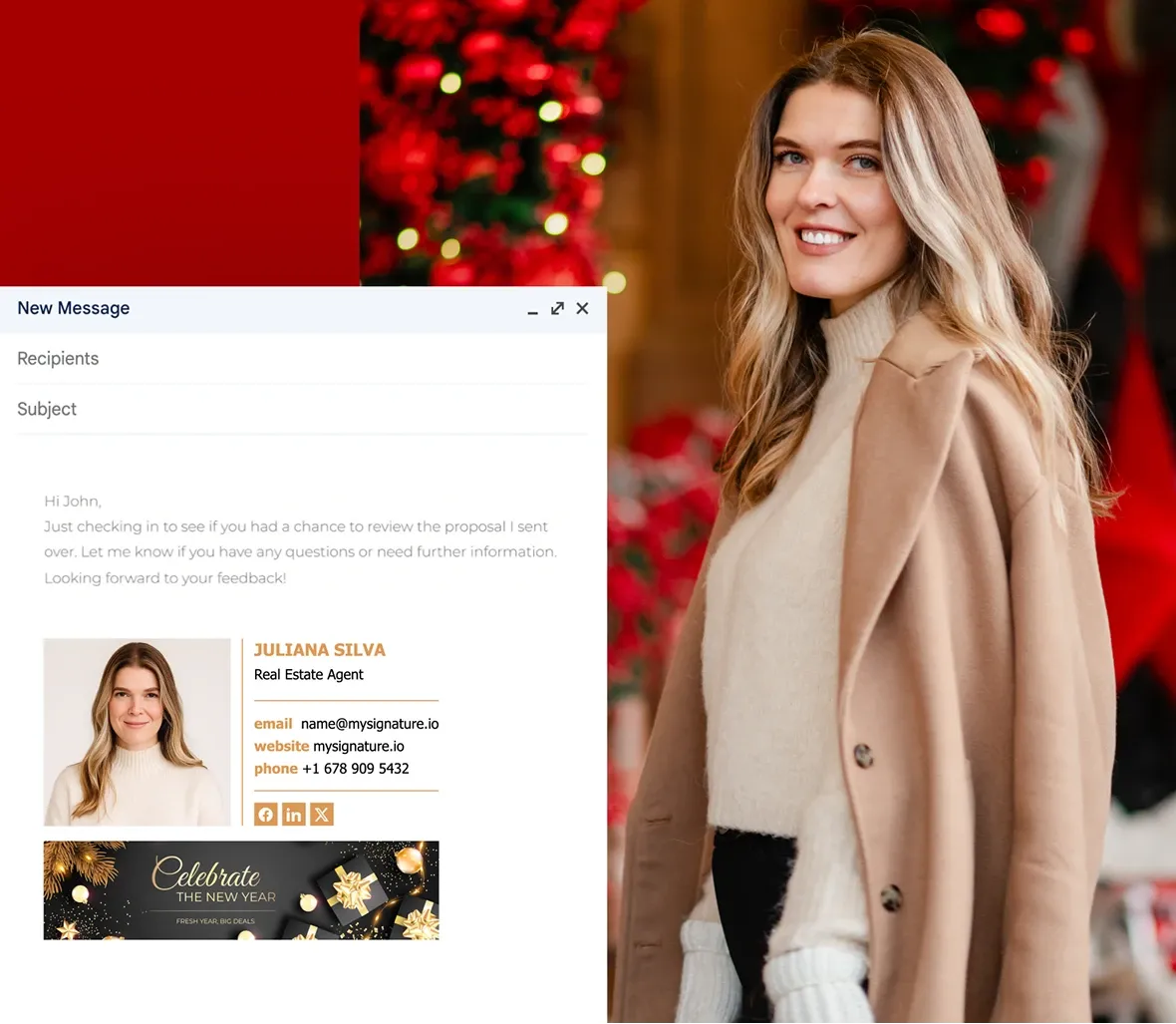
Free New Year’s email signature banner examples
Tap any banner to open it in the MySignature editor. Choose a static PNG/JPG or an animated GIF.



Check other holiday signature banners
Don’t forget to update your email signature after New Year with banners for Valentine’s Day, Easter, and more.
How to add a New Year’s banner to your email signature

Log in to MySignature, then open the Signature Editor.

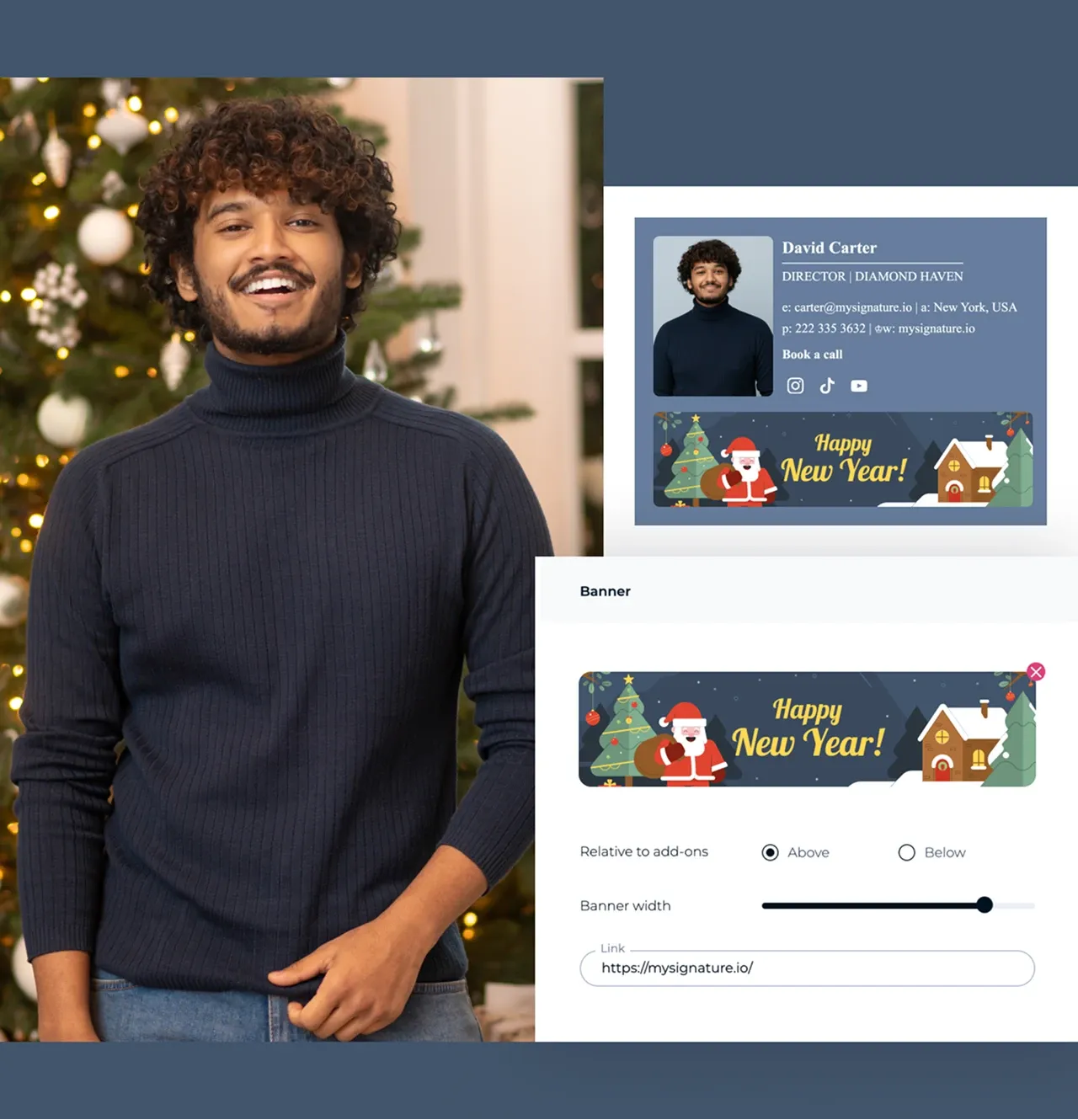
Go to Images, Banner Gallery, filter by New Year.

Pick static or animated.

Click Add to signature.

Optional: Upload your own banner or design new one via Canva.

Adjust size/placement for balance.

Save and apply to Gmail/Outlook/Apple Mail.
Tips for creating a New Year email signature with banner
- Start the year strong with an email signature that feels fresh and professional.
- Select a banner from MySignature’s gallery or upload your own design to give your signature a polished look.
- Make sure the banner complements your text so the signature remains clean and easy to read.
- Use colors that feel energetic or modern to match the start-of-year tone.
- Before sending, preview your signature across different email clients to ensure it displays correctly.
- Once the season passes, update your banner to keep your emails looking current.
F.A.Q
What size should my New Year’s banner be?
Use ~640–800 px width (e.g., 640× or 700×). Keep the file lean (<200–500 KB) to improve load times and reduce filtering risk.
How to create a New Year email signature
Creating a New Year email signature with MySignature is simple. Log in to the editor, pick a template, and add your details. Make it festive by selecting a New Year banner from the gallery or uploading your own design from Canva. When finished, save your signature and apply it to your email client.
Will animated email signature banners play everywhere?
Most modern clients support GIFs, but some Outlook desktop builds show only the first frame. Make that first frame a complete visual.
Static vs animated - what should I choose?
Static images are the most reliable and smallest. Use animation sparingly for a subtle highlight (e.g., a sparkle or countdown). If deliverability is critical, stick to static and keep the banner simple.