
Last Updated on 25.03.2026 by Vasyl Holiney
You’ve probably already used ChatGPT to refine text, summarize documents, or generate images. It’s fast, precise, and removes repetitive work from your day. Another useful thing you can create with ChatGPT is a fully clickable, branded email signature, not just two simple lines with “Best regards.”
With a ChatGPT email signature generator approach, you can create a signature that’s structured, visually appealing, and fully functional.
Yes, it takes patience. Yes, there are multiple steps. But the payoff is a professional email signature that stands out in every inbox. This article will guide you through the process step by step, using ChatGPT to transform a simple text block into a modern signature your emails deserve.
Key Takeaways
👉 ChatGPT can generate a fully clickable HTML email signature – not just plain text – when given a clear, structured prompt and all necessary details (contacts, links, visuals, brand style).
👉 Preparation determines quality. Gathering assets (logo URL, social links, brand colors, CTA) before prompting dramatically reduces revisions and messy code.
👉 The process requires conversion, not direct paste: raw HTML must be saved as an .html file, previewed in a browser, and only then copied into Gmail or Outlook.
👉 Testing across devices is essential: email clients render HTML differently, so previewing and sending test emails prevents broken layouts and missing images.
👉 ChatGPT offers flexibility, generators offer speed. AI gives full control and experimentation, while dedicated tools streamline deployment, updates, and team consistency.
Contents:
- Why Use ChatGPT to Create an Email Signature?
- How to Create Email Signature with ChatGPT
- Common Mistakes to Avoid
- ChatGPT vs Email Signature Generator
- FAQs
Why Use ChatGPT to Create an Email Signature?
Using ChatGPT for your email signature has clear advantages. Here are the three most compelling reasons:
- Cost-free accessibility
ChatGPT is free at the basic level, which makes it easy to experiment without committing to paid tools. You can explore ChatGPT email signature ideas, adjust layouts, tweak colors, and test different call-to-action placements without spending a dime.
- Total creative control
Unlike rigid templates, ChatGPT lets you define every detail. Add your logo, pick your brand colors, include social media icons for email signature, or even integrate a CTA button.
- Flexible iteration
While it’s not instant, ChatGPT lets you adjust prompts and try variations in wording, layout, or the information you include. You control the instructions, which can help you experiment with a draft signature before finalizing it.
How to Create Email Signature with ChatGPT
Creating a signature with ChatGPT is not a one-step process. It’s a sequence of deliberate actions. Follow them closely, and the result will be professional, functional, and visually polished.
Step 1: Gather Your Signature Information
Before you even open ChatGPT, gather all the elements for your signature. This preparation is essential. Organized input leads to cleaner output.
Here’s what to include:
- Basic contact information (Full name, job title, company name, email address, phone number, website)
- Social media icons
- Platforms you want to include
- Direct profile URLs
- CTA button
- Button text (e.g., “Book a Call” or “View Portfolio”)
- Button link
- Visual elements
- Logo or profile photo
- Direct URL to the image (hosted online, e.g., https://www.image2url.com/, upload your image there and paste the generated direct link into your signature)
- Brand identity
- Primary and secondary colors
- Preferred font style
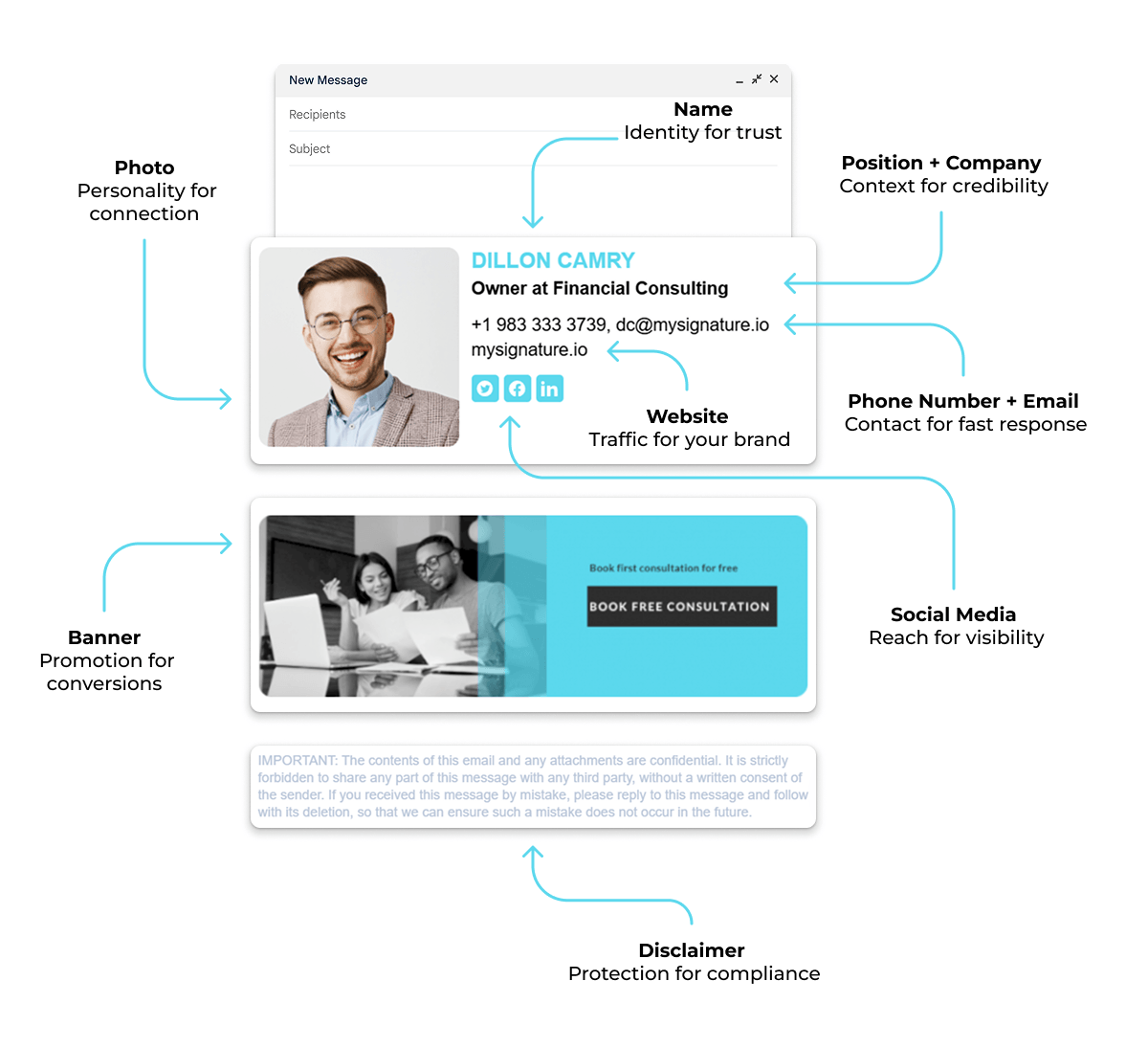
Having all of this ready ensures your prompt to ChatGPT is precise. Every element is represented, and nothing gets overlooked. This step alone will save hours of back-and-forth edits.
Step 2: Write the Right Prompt
The prompt determines the output. A weak prompt produces messy HTML. A clear, structured prompt produces a usable ChatGPT email signature example.
Here’s a template you can copy and paste directly:
Hey ChatGPT, I need to create a clickable HTML email signature.
My information:
Name:
Job title:
Company:
Website:
Email:
Phone:
Social media links:
LinkedIn:
Instagram:
Twitter:
CTA button:
Text:
Link:
Logo or profile photo URL:
Brand color:
Brand font:
Please generate clean HTML code with inline CSS compatible with Gmail and Outlook. Make it modern, professional, mobile-friendly, and visually appealing. Keep it structured and readable.
This prompt tells ChatGPT exactly what you need. It instructs the AI to consider layout, functionality, and mobile compatibility. Using a template like this is the fastest way to produce a clean starting point without endless trial and error.
Step 3: Generate the HTML Signature Code
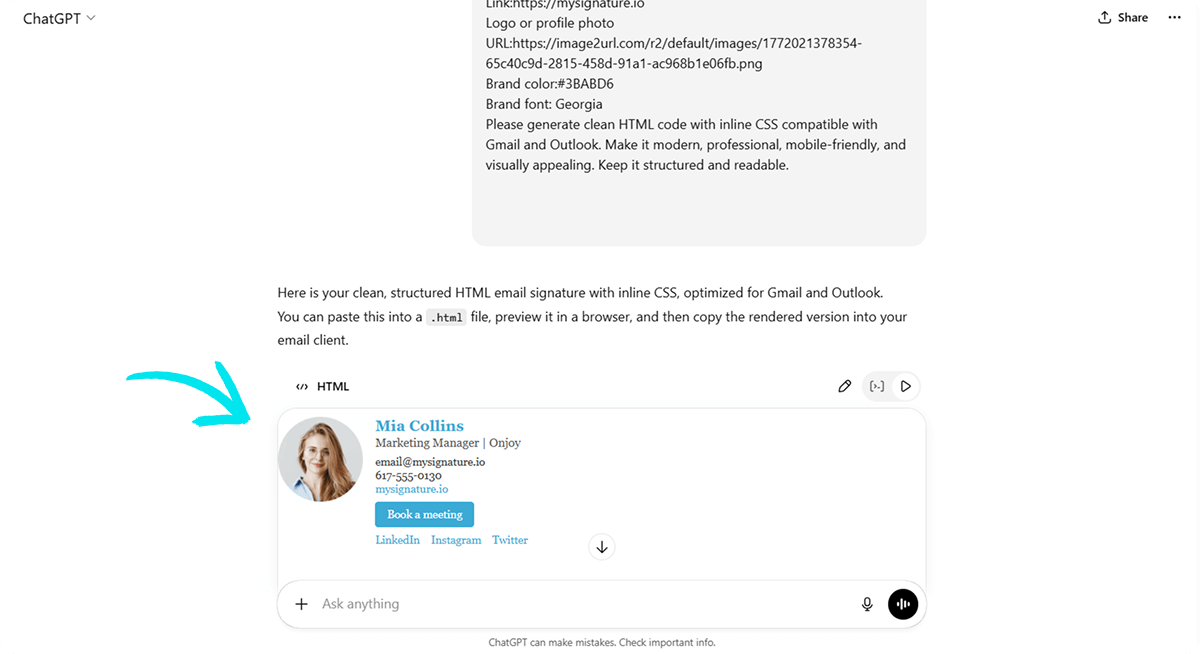
Once you submit the prompt, ChatGPT generates HTML code. This is your raw material.
However, you can’t just copy-paste this code into Gmail or Outlook. Most email clients will not render it correctly if pasted as raw HTML. That’s why the next step, saving and previewing the signature is crucial.
Step 4: Save the Signature in the Correct Format
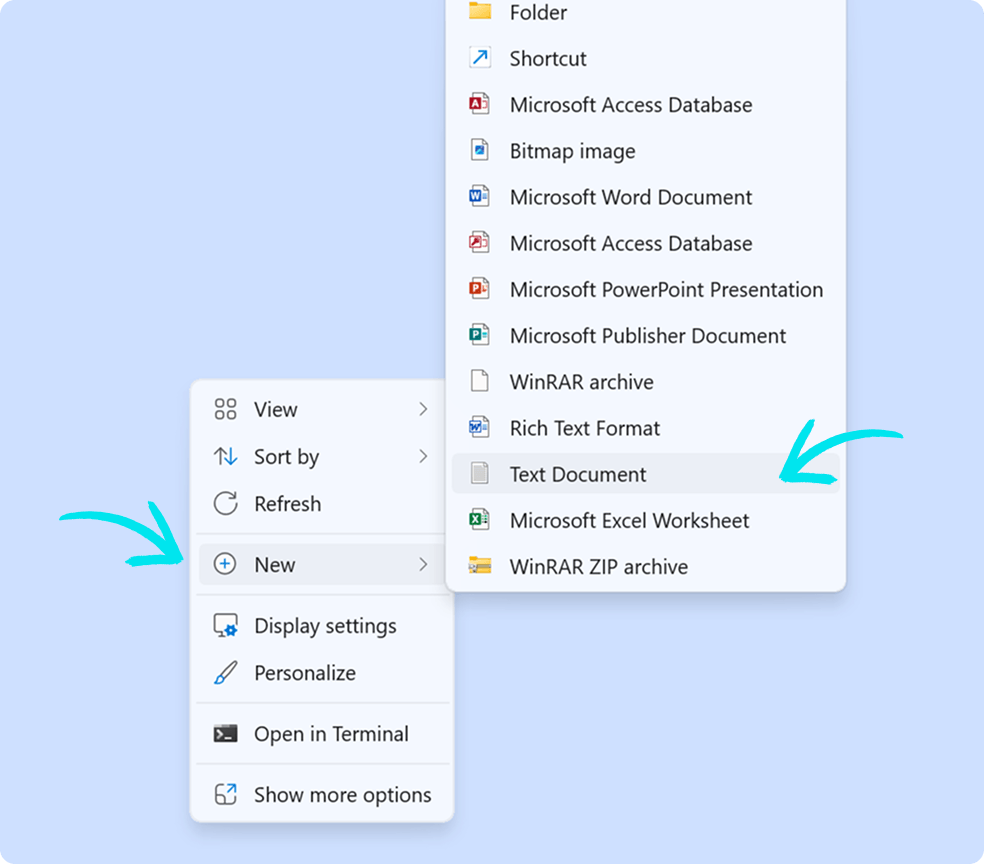
To create a usable email signature from the HTML code, follow these steps:
- Right-click on your desktop and select New → Text Document.
- Open the new file and paste the HTML code from ChatGPT.
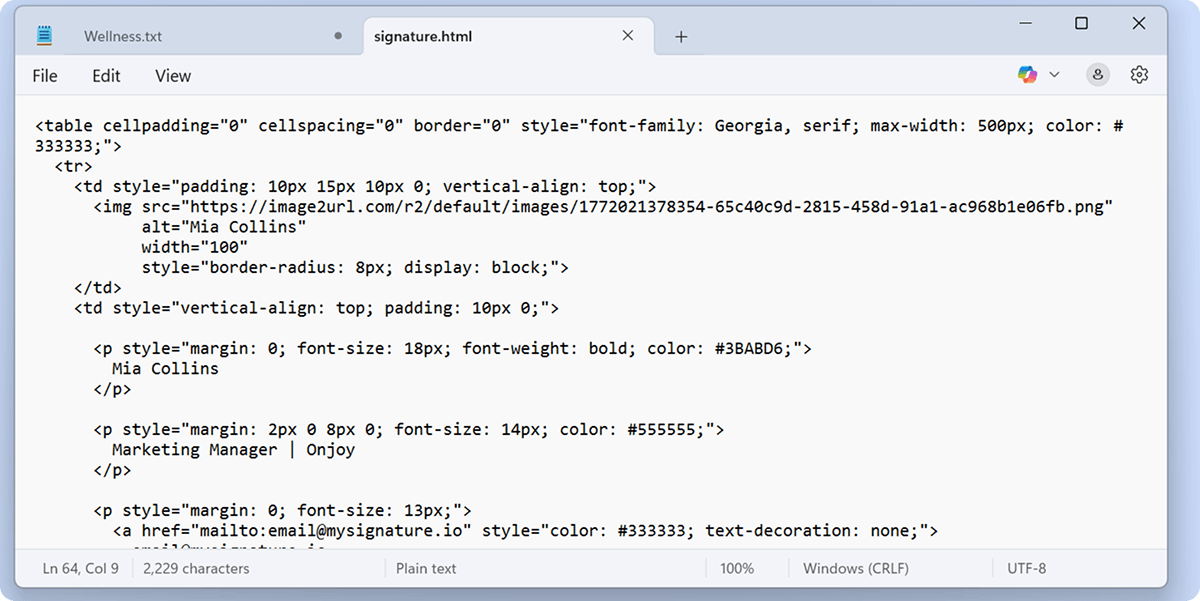
- Click Save As.
- Change File type to All files.
- Set Encoding to UTF-8.
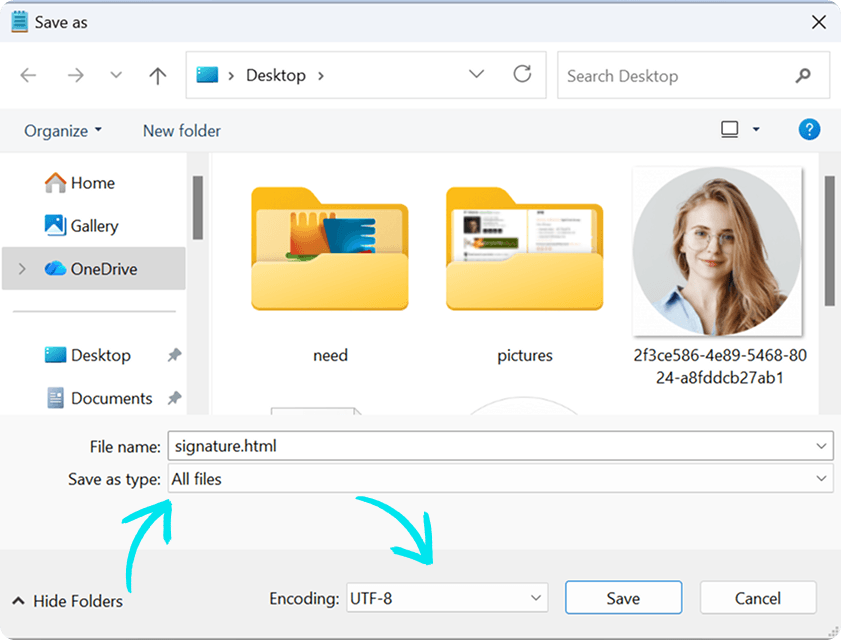
- Rename the file from emailsignature.txt to emailsignature.html.
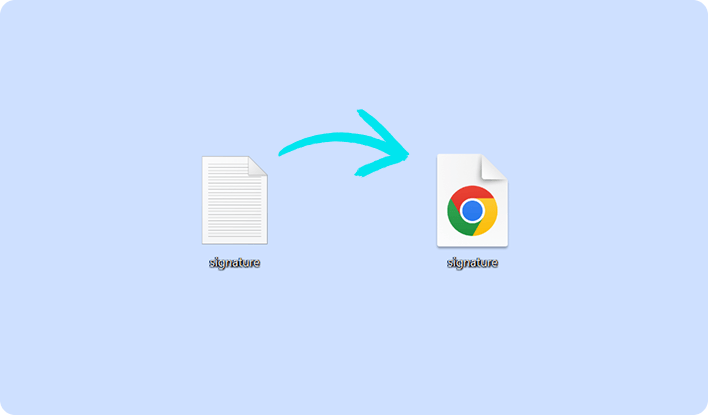
This conversion is essential. It turns your raw code into a functioning web document. When opened in a browser, it renders exactly how it will look in an email client.
From here, you’re ready to preview, test, and eventually install your signature.
Step 5: Preview Your Signature in a Browser
After saving your HTML file, you now have a ready-to-preview web document. Simply double-click it, and your browser will render the signature.
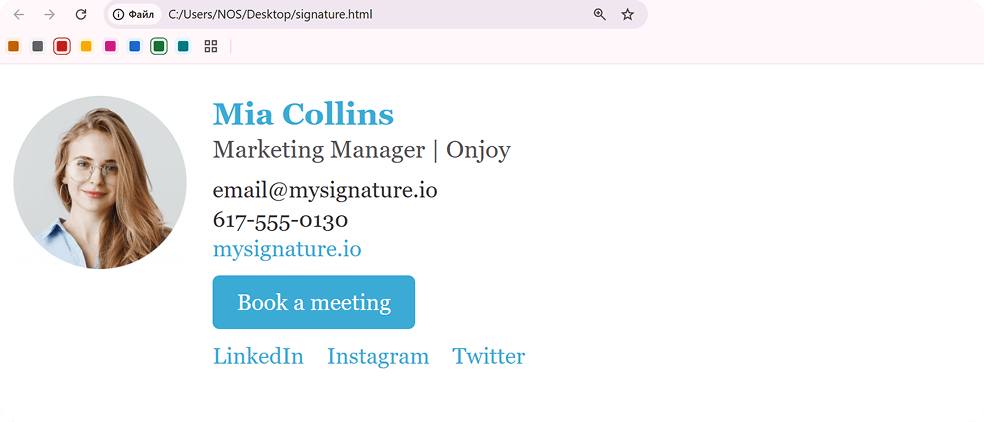
Previewing is critical. This is where you spot spacing issues, broken links, or color mismatches. If something looks off – the button is misaligned, an image doesn’t load, or colors seem off – go back to ChatGPT. Adjust the HTML, save the file again, and refresh the browser. Repeat this process until the signature looks perfect.
Using this method ensures that when you install your signature in Gmail or Outlook, it displays exactly as intended. Remember, this step is part of creating an effective email signature with ChatGPT .
Step 6: Install the Signature in Your Email Client
Once the signature looks perfect in the browser, it’s time to integrate it into your email client. Important: copy the visual preview from the browser, not the raw HTML code.
For Gmail:
- Go to Settings → See all settings → Signature.
- Click Create new signature.
- Paste the rendered signature into the editor.
- Assign it to your email account and save.
For Outlook:
- Go to File → Options → Mail → Signatures.
- Create a new signature.
- Paste the visual signature into the editor.
- Set it as the default for new emails and replies/forwards.
Step 7: Test and Optimize Your Signature
Before going live, send test emails to yourself and colleagues. Check how it appears across devices and email clients. Ensure links work, images load correctly, and buttons are clickable.
Make adjustments as necessary. Perhaps the spacing between elements feels too tight, or your CTA button color needs tweaking. Return to your HTML file, edit it in ChatGPT, save as HTML, preview again, and reinstall. Testing and optimization are essential steps in creating an email signature using ChatGPT that looks professional and consistent.
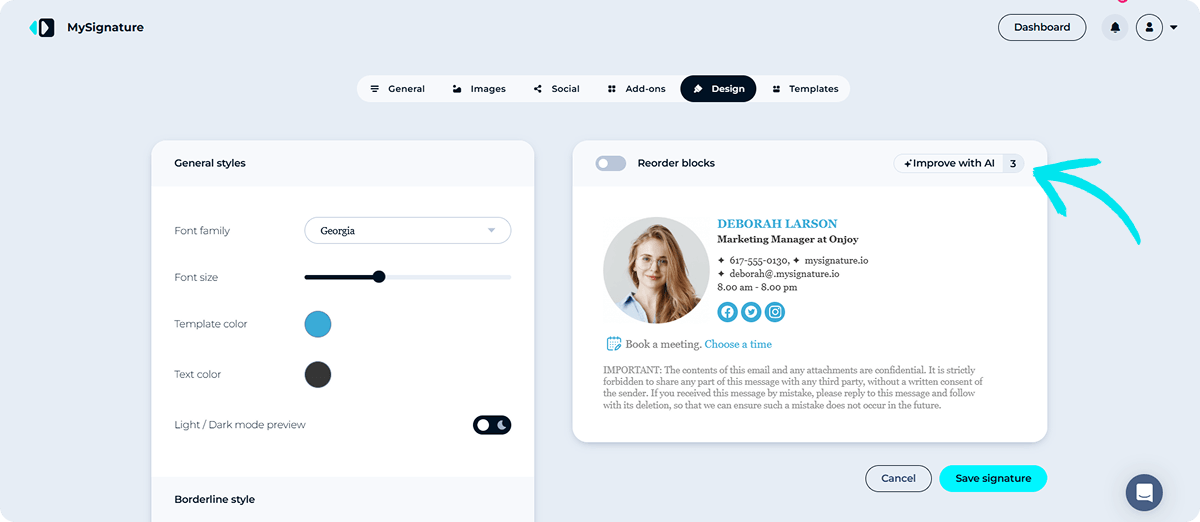
If you prefer a faster refinement process, MySignature also offers built-in AI features. You can click “Improve with AI” and instantly receive three updated template versions, then choose the one that fits your style and branding best – no manual code editing required.
Best Practices for a Professional Email Signature
Even when leveraging ChatGPT, some principles ensure your signature remains effective and polished:
- Keep hierarchy clear
Your name and title should stand out first, followed by contact info and social media icons. Readers should scan and understand quickly.
- Limit colors and fonts
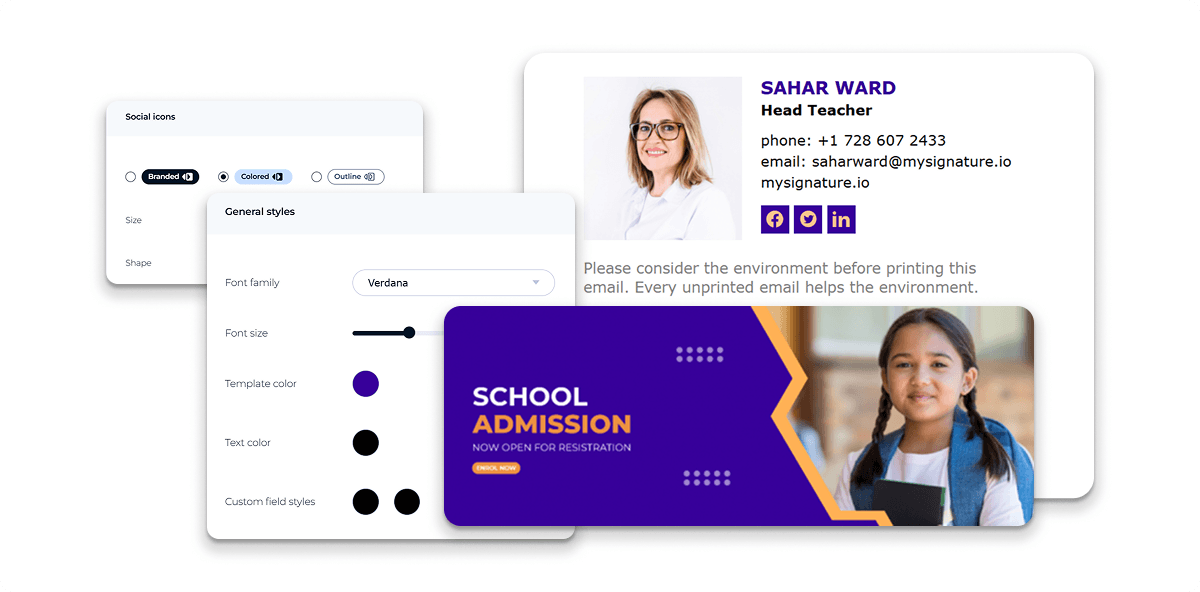
Stick to your brand palette. Avoid excessive fonts. Cohesive design reinforces AI for personal branding.
- Include a concise CTA
Buttons like “Schedule a Call” or “View Portfolio” give your signature purpose and drive action. Make it stand out visually and link it to a relevant page.
- Test mobile responsiveness
Most emails are opened on phones. Ensure spacing, buttons, and images scale correctly so everything stays readable and functional.
- Use high-quality images
Blurry logos or photos look unprofessional. Use sharp, properly hosted images with optimized file sizes for fast loading.
Common Mistakes to Avoid
Creating email signatures with ChatGPT is powerful but prone to pitfalls. Avoid these errors:
- Using local image files
Images stored on your computer won’t display for recipients. Always use direct hosted links.
- Overloading visuals
Too many icons or bright colors distract from the key message. Keep it clean.
- Pasting raw HTML directly
Email clients like Gmail will not render it correctly. Always paste the previewed version.
ChatGPT vs Email Signature Generator
Creating a signature with a chatbot is flexible but requires steps, adjustments, and testing. Email signature generators streamline this process, making it faster and more reliable.
| Feature | ChatGPT | MySignature |
| Price | Free (basic) | Paid plans |
| Ease of setup | Multi-step, manual | Guided, visual builder |
| HTML signature format | Requires manual code + file | One-click export |
| Customization | High but manual | High with templates |
| Analytics & tracking | Not included | Built-in |
| Updating | Requires re-editing | Centralized updates |
| Compatibility | Needs testing | Optimized for Gmail & Outlook |
| Time investment | Moderate to high | Low |
ChatGPT is best for experimentation and learning the structure of professional signatures. MySignature is ideal for efficiency, team collaboration, and consistent branding without the technical hassle.
Conclusion
Using ChatGPT, you can build a fully functional email signature tailored to your exact structure, branding, and messaging. It gives you the freedom to experiment with layout, hierarchy, colors, clickable profile links, and call-to-action buttons. With the right prompt and careful refinement, you can shape a signature that not only shares contact details but also reinforces your positioning and supports your broader branding strategy.
But if your goal is speed, consistency, or managing signatures across a team, an email signature generator like MySignature is the smarter choice.
Build your next professional signature faster with MySignature – modern, clickable, and fully branded.
FAQs
Why isn’t my image showing in my email signature?
Most likely, the image is stored on your computer or a private server. Email clients can’t access local files. To fix it, upload the image to a public URL and use that link in your signature.
Why does my signature look different in Outlook than in Gmail?
Outlook handles HTML differently from Gmail. Things like spacing, font size, and button layout can shift. To make it look correct, keep the design simple, use inline styles instead of external CSS, and always preview in multiple email clients before finalizing.
Can I easily update my signature after creating it?
With ChatGPT, any change requires editing the HTML and saving it again as a new file. It’s not automatic. If you want to update regularly or manage multiple signatures, a generator like MySignature makes the process much easier and centralized.